


Super Loud Volume Booster
4.53.13K Reviews
App Specs
- Version
- 34
- Updated On
- License
- Free
- Downloads
- 1,000,000+
- Developer
- TAMob
- Categories
- Music & Audio
- Platform
- Android
Screenshots
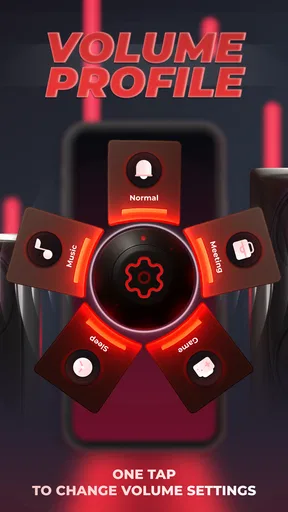
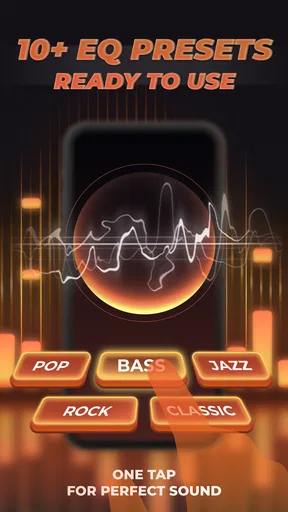
 Analysis by AppCompare
I often judge audio tools by a simple question: do they help me solve a real listening problem without making the result worse? Super Loud Volume Booster, developed by TAMob, is aimed at that exact moment. It is a free Music & Audio app for Android that combines volume boosting with a bass booster, equalizer, and sound assistant. I see it less as a music-making studio and more as a practical finishing tool: something I would open after choosing a track, video, podcast, or audiobook, when the phone’s normal output is not quite enough.
That distinction matters. This is not an app for composing a song from scratch, recording vocals, or exporting a finished mix. Its creative value comes later, when I am shaping how existing audio feels on a particular device or in a particular room. If you publish videos, prepare a playlist for a small gathering, or simply struggle to hear speech clearly from a phone speaker, that narrow purpose can be useful. If you need a full editor, multitrack workspace, or professional mastering environment, I would look elsewhere.
From a quiet playback problem to a usable listening setup
The starting point is refreshingly straightforward. I install the app, open the audio I want to hear, and use the controls to decide whether the issue is overall loudness, weak low end, or an unbalanced tonal profile. The store summary describes it as a volume booster and sound assistant, while the short description reduces the idea to “Super Loud.” In practice, I would treat that promise carefully: making audio louder is easy, but making it clearer and more pleasant requires restraint.
For a quick everyday scenario, imagine I am cooking while following a spoken recipe on my phone. The extractor fan and running water make the voice difficult to follow, but increasing every frequency equally may also make consonants harsh. I would first raise the output gradually, then use the equalizer to give the speech a cleaner presence rather than immediately pushing the loudest setting. That workflow is more sensible than assuming the maximum boost is automatically the best result.
The same applies to music. A thin-sounding track may benefit from a little bass, but a phone speaker cannot reproduce deep bass in the same way headphones or a larger speaker can. Excessive low-end processing can consume headroom and make the rest of the track feel muddy. My main advice is to begin with small changes, listen for distortion, and stop as soon as the audio becomes easier to enjoy. The most useful improvement is usually controlled clarity, not maximum volume.
Because this is an Android app, device behavior will naturally influence the experience. A modern phone with decent speakers, wired headphones, Bluetooth earbuds, and an older handset may all respond differently to the same adjustment. I would not copy a setting from one device to another and expect identical results. The app is best understood as a hands-on control layer that needs a little listening and adjustment, not as a guarantee that every source will suddenly sound studio-quality.
TAMob released the app on August 16, 2021, and the current version is 32. It supports Android 7.0 and newer, which gives it a broad reach across compatible phones. I appreciate that the application is not restricted to only recent Android versions, although support alone does not remove the practical differences between old and new audio hardware. On an older phone, the controls may be helpful precisely because the built-in output feels limited; on a newer phone, the gains may be subtler.
Worth Reading Before You Choose

Flipboard Shows What News Apps Must Do Beyond the Feed

Switching to Android Auto Means Rethinking Your Driving Routine

Google Calendar Makes a Crowded Week Easier to Manage

Ludo King Makes the Most of the Minutes Between Plans

Baby Panda World Brings Quick Play to Modern Phones, but Its Game Library Feels Busy

ESPN’s Live Game View Makes Following Close Games Easier
Choosing the right job before touching the controls
I find it helpful to separate three different goals. The first is simple loudness: I want a quiet clip or song to come through more strongly. The second is tonal correction: I want less boom, more presence, or a more comfortable balance. The third is creative previewing: I am checking how a piece of audio behaves when played through a small speaker rather than good headphones. Super Loud Volume Booster can be relevant to all three, but it should not be mistaken for a replacement for editing software.
That last use is particularly valuable for creators. When I prepare a short video, I may listen on headphones and think the dialogue is perfectly clear, only to discover that the same clip becomes weak on a phone. A volume and equalizer tool can help me perform a rough device check before delivery. It does not replace proper mixing, loudness analysis, or a careful export workflow, but it can reveal obvious problems in a familiar real-world listening environment.
There is also a useful trade-off between convenience and control. The usual alternative is the phone’s built-in volume slider, which is safer and simpler but offers little shaping. Another alternative is a full equalizer or music player with more detailed presets and playback management. Those tools may be better for someone who wants advanced audio customization. I would choose this app when I want a focused adjustment without turning the task into a long session of configuring a larger audio system.
How I would build a setting instead of chasing a louder number
My process starts with a familiar reference track or spoken clip. I listen at the normal phone volume first, then make one change at a time. If the source is quiet, I raise the booster modestly. If the source is dull, I adjust the equalizer rather than continuing to increase overall loudness. If the source already sounds aggressive, I reduce the problematic area instead of adding more power. This makes it easier to tell what actually helped.
For spoken audio, I focus on intelligibility. A podcast, lecture, or navigation instruction often benefits more from a balanced midrange than from heavy bass. For music, I compare a short section containing vocals, drums, and quieter details. This prevents me from judging the setting only by the strongest beat. For video, I check both dialogue and background music, because a setting that makes music exciting can also bury a speaker’s voice.
One non-obvious advantage of this approach is that the app can serve as a quick “small speaker test” for creative work. I can listen to a draft on the same kind of hardware many viewers may use, notice whether the vocal disappears, and return to my actual editor for the proper fix. That turns the app into part of a review loop rather than the final production tool. It is a modest workflow, but it is more useful than simply turning up a finished file and assuming it is ready.
I would also keep separate mental settings for different situations. Headphones can reveal detail that a phone speaker cannot, while a phone speaker can expose harshness and weak speech placement. Bluetooth devices may introduce their own tonal character. I would therefore avoid making a permanent adjustment based on one listening environment. The best result may be a conservative everyday level, with temporary changes for a noisy room or a specific piece of content.
Another practical tip is to compare the processed sound with the original at a similar perceived loudness. Louder often feels better for a few seconds, even when the balance is worse. If I raise the volume and then compare without compensating for that difference, I may mistake sheer intensity for improved quality. A short pause and a return to the original setting help me decide whether the equalizer or bass adjustment genuinely improved the material.
Where iteration helps, and where it starts to hurt
Audio adjustment is an iterative process, but it should not become endless guessing. I would make a small change, listen to several parts of the source, and either keep it or undo it. The most important checkpoints are quiet passages, loud peaks, speech transitions, and moments where instruments overlap. If the setting only sounds impressive during a chorus but makes the rest tiring, it is not a good all-purpose choice.
Boosting can also expose weaknesses that were hidden at normal playback. Crackle, harsh treble, or a flattened sense of dynamics may become more obvious. That is not necessarily the app damaging the original file; it may simply be revealing that the phone, headphones, or source has reached a limit. I would respond by backing off the boost, reducing aggressive equalizer changes, or switching to better playback hardware. The app cannot create clean detail that was never present.
For creators, this is where the app’s limits become clear. I would use it to audition a draft, not to permanently “fix” a poorly mixed master through playback amplification. If dialogue is too quiet in an exported video, the correct solution is usually to return to the editing project, adjust the dialogue and music relationship, and export again. Using a booster at the listening stage can hide the issue for me while leaving the audience with the same problem.
Users should also think about hearing comfort. A setting that seems exciting for a short song can become unpleasant during a long podcast or film. I prefer to judge the app over a full listening session rather than only during a quick demonstration. If I need to keep reaching for the volume control, or if speech becomes tiring, I consider that a sign to reduce the effect. More output is not automatically a better experience.
There is a further trade-off for people who use several audio apps. A dedicated music player may already include its own equalizer or sound profile, and the phone itself may offer manufacturer-specific audio controls. Layering multiple systems can make the result unpredictable. I would choose one main place to shape the sound, then use Super Loud Volume Booster as the focused option when its controls are more convenient. Running every available enhancer at once is unlikely to produce a clean, repeatable result.
From a listening adjustment to a creator handoff
When I am preparing creative work for someone else, I would treat the app as a quality-control checkpoint before handoff. I can play the draft on an Android phone, check whether the voice remains understandable, and note any sections that collapse into noise or become too quiet. Then I would make the real changes in the original editing or production software. This keeps the final file honest instead of relying on the recipient to have the same booster enabled.
That workflow answers an important practical question: can this app export a newly mastered audio file or replace a full video editor? I would not position it that way. Its role is playback adjustment and auditioning. For final delivery, I would use the application that created the audio or video, because that is where I can control the source, timeline, mix, and final file. Super Loud Volume Booster is useful before delivery, not as a substitute for delivery tools.
For a personal handoff, such as sharing a playlist or sending a video to a friend, I would mention that my listening setup has been checked but would not expect the other person to hear an identical result. Their phone, headphones, system volume, and room will all affect playback. This is another reason to keep edits moderate. A balanced source travels better than one that depends on heavy enhancement.
The app is free to install, which makes experimenting with this workflow easy. It is rated for Everyone, so its presentation is accessible to a broad audience. In-app purchases are listed at $12.99 per item, a cost I would consider before paying for extra functionality. Since the basic purpose is easy to understand, I would spend time testing whether the free experience solves my particular problem before considering any purchase. For occasional use, the built-in phone controls or an existing player may already be enough.
Its popularity suggests that many Android users find the idea useful: the app has passed one million installs, with an average rating of 4.5 from around nineteen thousand ratings and roughly three thousand one hundred written reviews. I read those figures as evidence of broad interest rather than a promise for every device. Volume behavior is highly hardware-dependent, and satisfaction will vary depending on whether someone wants louder output, stronger bass, clearer speech, or a more adjustable sound profile.
Who should use it, and who should choose something else
I would recommend Super Loud Volume Booster to someone who regularly finds phone playback too quiet and wants a direct way to experiment with loudness, bass, and equalizer balance. It also makes sense for casual creators who need a quick phone-speaker check for videos, voice clips, or social posts. The app is approachable enough for a listener who does not want to learn a full audio workstation, yet flexible enough to encourage more thoughtful adjustments than the standard volume buttons.
I would be more cautious recommending it to anyone seeking professional mastering, detailed recording, multitrack editing, or dependable file delivery. A dedicated digital audio workstation is the better choice for those jobs. I would also skip it if my phone already provides a sound profile that I like and I rarely listen in noisy environments. Adding another control layer would offer little benefit and could make my setup harder to understand.
People who are sensitive to harshness should begin especially gently. Bass enhancement can be enjoyable on suitable headphones but disappointing through a small speaker, where it may reduce clarity. Likewise, a large volume increase may make a weak source seem more energetic while making long listening uncomfortable. I would use the app as a fine-tuning tool, not as permission to listen at unsafe levels.
One of its strongest qualities is its narrow focus. Compared with a general music player, it is less about organizing a library and more about changing the listening result. Compared with a full equalizer suite, it may feel easier to approach because the purpose is immediately clear. Compared with a real editor, it is far less capable, but that is also why I would open it for a quick check instead of starting a lengthy production session.
My creator-focused verdict
After looking at it as part of a creative workflow, I see Super Loud Volume Booster as a practical last-mile listening aid rather than a production platform. It helps me answer questions such as “Can I hear this voice on a phone?” and “Does this track need tonal adjustment for this playback setup?” Those are useful questions before publishing, especially when the audience may listen through ordinary mobile hardware.
I like the combination of volume control, bass adjustment, and equalizer access because it encourages me to solve the actual problem instead of blindly increasing everything. The best results come from a disciplined loop: listen normally, change one element, compare several parts, test on the intended device, and make permanent corrections in the original project when necessary. That approach turns a simple booster into a useful review step for creative output.
The limitations are just as important. It cannot replace a proper editor, a mastering environment, or a careful export process. Heavy processing can make audio harsh, muddy, or tiring, and different phones will not respond identically. The purchase price of $12.99 per item also means I would test the free experience thoroughly before spending anything. For a listener who only needs occasional extra loudness, the standard Android controls may remain the simpler answer.
Still, I think the app is worth trying if your problem is specific: quiet mobile playback, weak speech on a small speaker, or the need to preview a draft in a realistic everyday setting. TAMob has kept the concept focused, and the Android 7.0 minimum makes it accessible to many devices. I would recommend it to friends as a controlled way to explore louder and better-balanced playback, with one condition: use your ears, make small changes, and do not confuse a louder preview with a finished piece of audio.
Pros
- Boosts quiet audio beyond the phone’s standard volume limit.
- Simple controls make it quick to adjust sound levels.
- Works with music
- videos
- podcasts
- and many streaming apps.
- Useful for improving speech clarity on low-volume recordings.
- Small app size and straightforward interface are easy for most users.
Cons
- Excessive amplification can cause distortion and harsh-sounding audio.
- High volume may damage hearing or connected speakers.
- Results vary depending on the phone
- headphones
- and Android version.
- Some features may be limited by ads or require in-app purchases.
- It cannot truly improve poor-quality audio or restore missing sound detail.
FAQs for Super Loud Volume Booster
What is Super Loud Volume Booster, and what does it do?
Super Loud Volume Booster is an Android utility designed to increase the perceived loudness of music, videos, games, notifications, and other media. It generally works by applying audio amplification or equalizer effects on top of the device’s normal volume controls. Results can vary depending on the phone, headphones, speaker quality, Android version, and the specific app playing the sound.
Can Super Loud Volume Booster make my phone louder than its standard maximum volume?
The app may make audio sound louder than the default system setting by boosting certain frequencies or increasing the output level, but it cannot overcome every hardware limitation. Some phones apply their own safety restrictions, while others may already be close to their maximum speaker capacity. If the sound becomes distorted, lowering the boost level is recommended rather than continuing at maximum amplification.
Is Super Loud Volume Booster safe for my phone and hearing?
Using a volume booster at moderate levels is generally straightforward, but excessive amplification can cause speaker distortion, overheating, or long-term damage to small phone speakers in some situations. More importantly, listening through headphones at high volume may harm your hearing. Start with a low boost, increase it gradually, and take regular breaks, especially when using earbuds or headphones.
Does Super Loud Volume Booster work with music, videos, games, and headphones?
Compatibility depends on the device and the audio source. The booster may affect media playback from music and video apps, games, podcasts, and locally stored files, while notifications, calls, or streaming services may behave differently because of Android audio restrictions. It can also work with wired or Bluetooth headphones, although Bluetooth devices may apply their own volume limits or sound processing.
Does Super Loud Volume Booster require special permissions or an internet connection?
The app may request permission to display controls over other applications, run as an audio service, or send notifications so its booster remains accessible during playback. Exact requirements can differ between versions and devices. An internet connection is usually not needed for basic volume amplification, but advertisements, analytics, updates, or optional features may require connectivity. Review the permissions before installing.


